
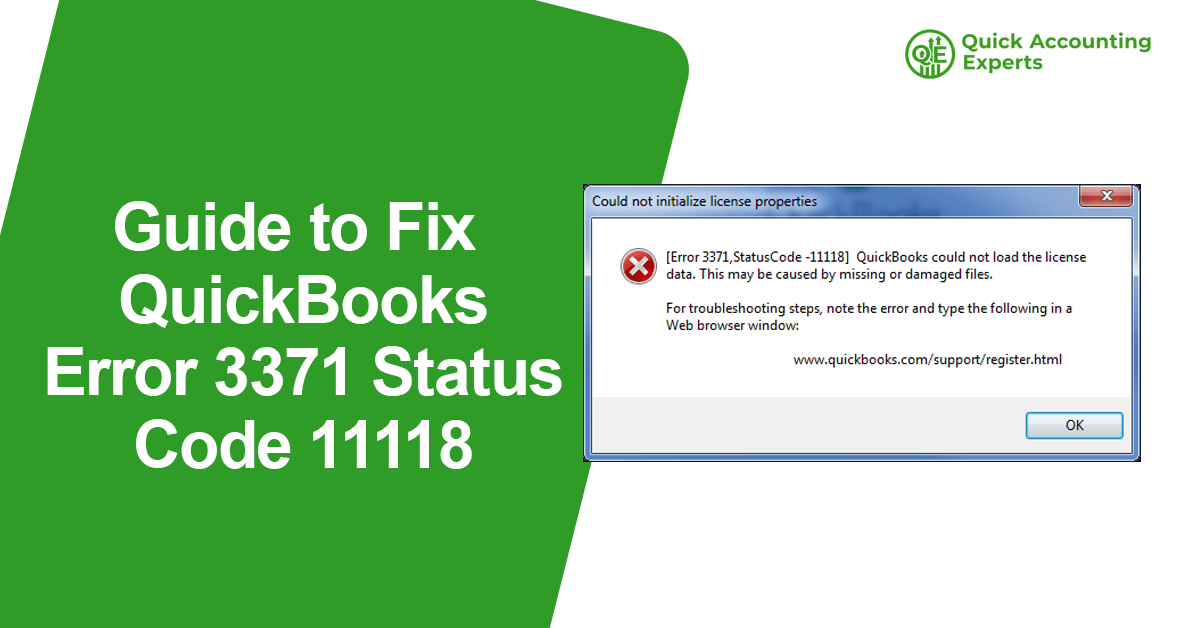
QuickBooks is one of the most widely used accounting software applications worldwide, trusted by small and medium-sized businesses for managing finances efficiently. However, like all software, QuickBooks can sometimes encounter technical errors that disrupt workflow. One such error that many users face is QuickBooks Error 3371 Status Code 11118.
This error typically appears when users try to open QuickBooks Desktop and can prevent the software from launching properly. Understanding why this error occurs, how to troubleshoot it, and preventing it in the future is critical for maintaining uninterrupted access to your accounting data.
In this comprehensive guide, we will explore everything you need to know about QuickBooks Error 3371 Status Code 11118, including causes, symptoms, step-by-step fixes, and preventive measures.
What is QuickBooks Error 3371 Status Code 11118?
QuickBooks Error 3371 Status Code 11118 is a license-related error. It generally occurs when QuickBooks is unable to locate or verify the license information required to run the software. This can happen due to damaged, missing, or corrupted files associated with QuickBooks licensing.
When this error occurs, users typically see the following message:
“QuickBooks could not load the license data. This may be caused by missing or damaged files. [Error 3371, Status Code 11118]”
The error prevents QuickBooks Desktop from opening and stops users from accessing company files, which can be especially frustrating during tax season or month-end accounting activities.
Symptoms of QuickBooks Error 3371
Being able to identify the symptoms quickly helps in troubleshooting the issue efficiently. Common symptoms include:
- QuickBooks fails to open and displays Error 3371 Status Code 11118.
- The license information cannot be verified.
- QuickBooks may crash during startup.
- Users are unable to access company files.
- Repeated attempts to open QuickBooks show the same error message.
If you experience one or more of these symptoms, it indicates that your QuickBooks Desktop license data may be corrupted or missing.
Causes of QuickBooks Error 3371 Status Code 11118
Understanding the causes of this error is crucial for applying the correct fix. The most common reasons include:
- Damaged or Missing License Files
The error occurs when QuickBooks cannot locate the required license file (EntitlementDataStore.ecml) on your system. - Corrupted QuickBooks Installation
Incomplete or corrupted installation of QuickBooks Desktop can trigger this error. - Outdated Windows Operating System
Using an outdated or unsupported version of Windows can prevent QuickBooks from verifying licenses. - Anti-virus or Firewall Restrictions
Overly strict security software may block QuickBooks files, leading to licensing issues. - Corrupted Company Files
Damaged company files or backup files may indirectly trigger the error. - Network or System Restore Issues
Restoring the system to an earlier point or moving QuickBooks across computers incorrectly can sometimes damage license files.
Step-by-Step Solutions to Fix QuickBooks Error 3371 Status Code 11118
Here is a detailed step-by-step guide to resolving this error effectively.
Solution 1: Update Windows
An outdated Windows operating system can prevent QuickBooks from reading license files correctly.
Steps:
- Press Windows + I to open Settings.
- Navigate to Update & Security > Windows Update.
- Click Check for updates.
- Install all pending updates.
- Restart your computer and open QuickBooks.
Updating Windows ensures all system files required for QuickBooks licensing are intact and compatible.
Solution 2: Rename the EntitlementDataStore.ecml File
The EntitlementDataStore.ecml file contains QuickBooks license information. Renaming it forces QuickBooks to recreate it.
Steps:
- Close QuickBooks.
- Press Windows + R to open the Run dialog.
- Type: C:\ProgramData\Intuit\Entitlement Client\v8 and press Enter.
- Locate EntitlementDataStore.ecml.
- Right-click and select Rename, then change it to EntitlementDataStore.old.
- Open QuickBooks. It will recreate the license file and may require you to re-enter the product license and serial number.
Solution 3: Repair QuickBooks Desktop Installation
A corrupted installation may prevent QuickBooks from reading license files.
Steps:
- Press Windows + R, type Control Panel, and hit Enter.
- Go to Programs and Features.
- Select QuickBooks Desktop, then click Uninstall/Change.
- Choose Repair and follow on-screen instructions.
- Once repair is complete, restart your system and open QuickBooks.
Solution 4: Use QuickBooks Install Diagnostic Tool
Intuit provides a dedicated tool to repair installation and .NET Framework issues, which are often linked to Error 3371.
Steps:
- Download the QuickBooks Tool Hub from Intuit’s official website.
- Install and open the tool.
- Select Installation Issues.
- Click QuickBooks Install Diagnostic Tool.
- Let the tool run (this may take 20–30 minutes).
- Restart your system and try opening QuickBooks.
Solution 5: Reinstall QuickBooks Desktop
If the above solutions do not work, a fresh installation may be required.
Steps:
- Backup your company files.
- Uninstall QuickBooks via Control Panel > Programs and Features.
- Download the latest QuickBooks Desktop installer from Intuit.
- Install QuickBooks using the Run as Administrator option.
- Activate the software with your license and product number.
Solution 6: Check Firewall and Antivirus Settings
Firewall and antivirus programs may block QuickBooks from accessing required license files.
Steps:
- Temporarily disable your antivirus.
- Add exceptions for QuickBooks executables (QBW32.exe, QBUpdate.exe) in your firewall settings.
- Open QuickBooks and check if the error persists.
- Re-enable antivirus after troubleshooting.
Solution 7: Restore Backup Files
If the license file was corrupted during a system restore or crash, restoring your backup may help.
Steps:
- Locate a backup of your QuickBooks data folder.
- Copy the backup to the original directory.
- Open QuickBooks and verify if the error has been resolved.
Solution 8: Contact QuickBooks Support
If none of the above solutions work, contacting Intuit QuickBooks support is recommended. They can provide advanced assistance to repair licensing files and validate your product credentials.
Preventive Measures to Avoid Error 3371
Once resolved, it’s important to implement preventive measures to avoid encountering the error again:
- Keep QuickBooks Desktop updated regularly.
- Install the latest Windows updates.
- Maintain backups of company and license files.
- Configure antivirus and firewall to allow QuickBooks access.
- Avoid moving QuickBooks files manually across systems without proper procedures.
- Use QuickBooks Tool Hub periodically to fix minor issues before they escalate.
QuickBooks Error 3371 Status Code 11118 FAQs
Q1: What is QuickBooks Error 3371 Status Code 11118?
A: It is a license-related error that occurs when QuickBooks Desktop cannot locate or verify license information required to run the software.
Q2: What causes Error 3371 in QuickBooks?
A: Causes include damaged or missing license files, corrupted installation, outdated Windows, firewall or antivirus interference, and corrupted company files.
Q3: Can I fix QuickBooks Error 3371 myself?
A: Yes. Most users can resolve it by updating Windows, renaming the license file, repairing QuickBooks installation, or using the QuickBooks Tool Hub.
Q4: Will reinstalling QuickBooks fix Error 3371?
A: Often, yes. Reinstalling QuickBooks ensures that all required license files are correctly installed and functional.
Q5: Is Error 3371 dangerous for my data?
A: No, the error prevents QuickBooks from opening but does not corrupt company files. However, you should always maintain backups to prevent data loss.
Q6: How long does it take to fix QuickBooks Error 3371?
A: Depending on the method, it can take anywhere from 15 minutes (renaming license file) to 1–2 hours (repairing installation or reinstalling).
Q7: Can firewall settings cause Error 3371?
A: Yes. Overly strict firewall or antivirus settings may block QuickBooks from accessing licensing files, triggering Error 3371.
Q8: How can I prevent Error 3371 in the future?
A: Keep QuickBooks and Windows updated, maintain backups, configure firewall exceptions, and avoid moving QuickBooks files manually.
Read More: QuickBooks Error Code 6189: How to Settle It?
Final Thoughts
QuickBooks Error 3371 Status Code 11118 is a common yet resolvable error related to licensing. It can disrupt workflow but can be fixed using systematic troubleshooting methods such as updating Windows, renaming license files, repairing QuickBooks installation, or using QuickBooks Tool Hub.
Preventive practices like regular updates, firewall configuration, and maintaining backups can ensure this error does not recur, keeping your QuickBooks Desktop running smoothly and your financial operations uninterrupted.
By following this comprehensive guide, business owners, accountants, and bookkeepers can confidently resolve Error 3371 and continue using QuickBooks Desktop without disruption.