
QuickBooks is one of the most popular accounting software solutions globally, trusted by millions of small to medium-sized businesses. Despite its reliability, users may encounter errors that interrupt workflow. One such common error is QuickBooks Error Code -6000-832.
This error typically occurs when trying to open a company file or during multi-user setup. If left unresolved, it can prevent users from accessing essential financial data and disrupt daily accounting operations.
In this detailed guide, we will cover everything about QuickBooks Error -6000-832, including its causes, symptoms, step-by-step solutions, preventive measures, and FAQs. By the end of this article, you will be equipped to troubleshoot and prevent this error efficiently.
What is QuickBooks Error Code -6000-832?
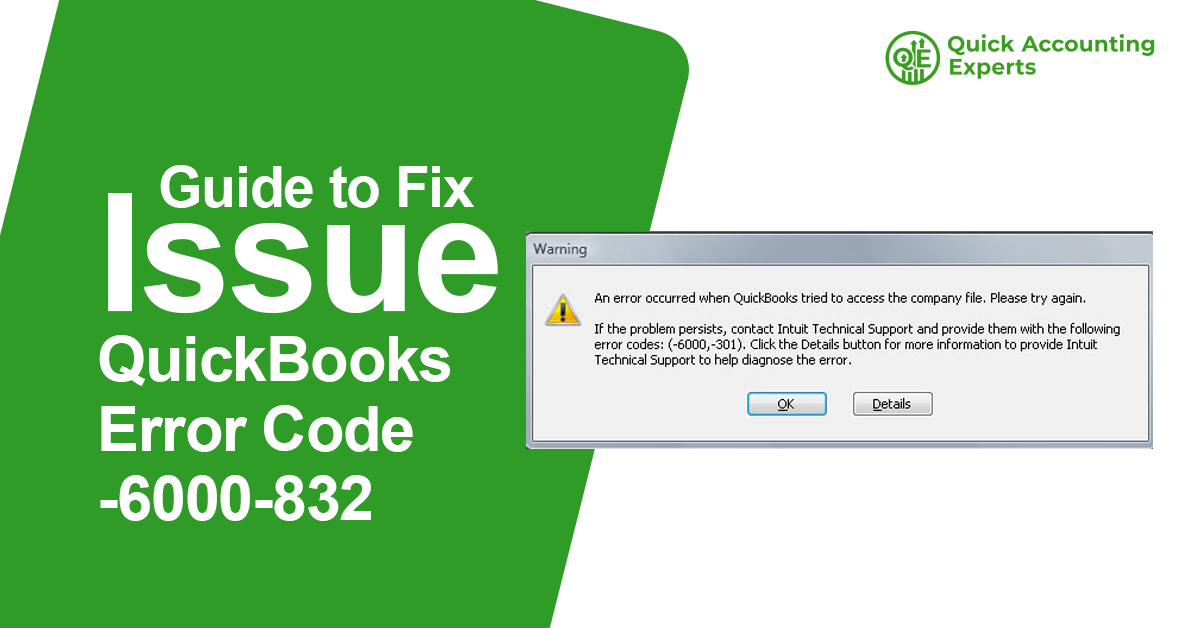
QuickBooks Error -6000-832 is a company file-related error. It occurs when QuickBooks is unable to access a company file due to corruption, improper network setup, or file damage. The error is commonly seen in multi-user environments and can appear with messages such as:
“An error occurred when QuickBooks tried to access the company file. [Error -6000-832]”
This error is part of the -6000 series, which includes issues related to company files, data corruption, and network access problems. Resolving this error promptly is critical for ensuring business continuity.
Symptoms of QuickBooks Error -6000-832
Recognizing the signs of Error -6000-832 helps in early troubleshooting. Common symptoms include:
- QuickBooks crashes when opening a company file.
- Error message code -6000-832 is displayed.
- Users cannot open the company file in multi-user mode.
- QuickBooks becomes unresponsive during startup.
- Files may fail to sync across network drives.
If you notice these issues, it indicates that your company file or network configuration may need attention.
Causes of QuickBooks Error Code -6000-832
Understanding the causes of this error allows you to apply the correct fix. Common causes include:
- Damaged or Corrupted Company File
- The primary reason for this error is a corrupted .QBW file.
- Incorrect File Path
- Moving a company file without updating the path in QuickBooks can trigger the error.
- Network Issues
- Multi-user mode errors often occur due to improper network setup or blocked ports.
- Firewall or Security Settings
- Firewalls may prevent QuickBooks from accessing the company file.
- Hosting Conflicts
- Multiple systems hosting the company file can cause file access issues.
- Antivirus Software
- Overly strict antivirus settings may block QuickBooks processes.
Step-by-Step Solutions to Fix QuickBooks Error -6000-832
Here’s a detailed troubleshooting guide to resolve QuickBooks Error Code -6000-832.
Solution 1: Use QuickBooks File Doctor Tool
The QuickBooks File Doctor is designed to repair company file and network-related issues.
Steps:
- Download QuickBooks Tool Hub from the official Intuit website.
- Install and open the Tool Hub.
- Select Company File Issues.
- Click Run QuickBooks File Doctor.
- Select the affected company file.
- Enter QuickBooks admin credentials and run the scan.
- Wait for the tool to repair the file and try reopening QuickBooks.
Solution 2: Move the Company File to a Local Drive
Sometimes network paths cause errors. Moving the company file to a local system can resolve -6000-832.
Steps:
- Close QuickBooks on all systems.
- Copy the .QBW file to the C: drive on your local computer.
- Open QuickBooks Desktop and navigate to the new file location.
- Try opening the file to check if the error persists.
Solution 3: Verify Hosting Settings
Incorrect multi-user hosting settings can trigger Error -6000-832.
Steps:
- Open QuickBooks on the server system.
- Go to File > Utilities.
- If you see Stop Hosting Multi-User Access, click it.
- On workstations, go to File > Utilities and ensure Host Multi-User Access is enabled only on the server.
- Restart QuickBooks and attempt to open the company file.
Solution 4: Rename the .ND and .TLG Files
QuickBooks creates .ND (Network Data) and .TLG (Transaction Log) files for each company file. Renaming them forces QuickBooks to recreate these files.
Steps:
- Navigate to the folder containing your company file.
- Locate files with the same name as your company file but with .ND and .TLG extensions.
- Right-click and rename them to .ND.old and .TLG.old.
- Open QuickBooks and try to access the company file.
Solution 5: Check Firewall and Security Settings
Firewall and antivirus software may block QuickBooks from accessing network files.
Steps:
- Temporarily disable your firewall and antivirus.
- Add exceptions for QuickBooks executables:
- QBW32.exe
- QBDBMgrN.exe
- QBDBMgr.exe
- QBUpdate.exe
- Enable firewall/antivirus after testing.
- Try reopening the company file.
Solution 6: Restore a Backup File
If your company file is corrupted beyond repair, restoring a backup is the safest option.
Steps:
- Locate the latest backup file (.QBB) of your company.
- Open QuickBooks and go to File > Open or Restore Company.
- Choose Restore a Backup Copy and click Next.
- Select Local Backup and browse to the backup location.
- Restore the file and check if QuickBooks opens successfully.
Solution 7: Create a New Windows User
User profile corruption can also trigger QuickBooks errors.
Steps:
- Open Control Panel > User Accounts.
- Create a new Windows user with Admin rights.
- Log in to the new profile.
- Open QuickBooks and attempt to access the company file.
Solution 8: Configure QuickBooks Database Server Manager
For multi-user environments, QuickBooks Database Server Manager ensures proper file access.
Steps:
- Open QuickBooks Database Server Manager on the server.
- Scan the folder containing your company file.
- Ensure the correct ports are open for QuickBooks.
- Restart all systems and check multi-user access.
Solution 9: Reinstall QuickBooks
If all else fails, reinstalling QuickBooks can repair installation issues causing the error.
Steps:
- Backup all company files.
- Uninstall QuickBooks via Control Panel > Programs and Features.
- Download the latest QuickBooks installer from Intuit.
- Install using Run as Administrator.
- Activate the software and try opening the company file.
Preventive Measures to Avoid Error -6000-832
Once resolved, follow these best practices to prevent future occurrences:
- Regularly update QuickBooks Desktop to the latest version.
- Maintain backups of company files.
- Use correct hosting and multi-user configuration.
- Keep firewall and antivirus settings configured for QuickBooks.
- Avoid manual manipulation of network paths for company files.
- Use QuickBooks Tool Hub periodically to fix minor issues.
QuickBooks Error -6000-832 FAQs
A: It is a company file-related error that occurs when QuickBooks cannot access the company file due to corruption, network issues, or improper hosting setup.
Q2: What causes QuickBooks Error -6000-832?
A: Causes include damaged company files, incorrect file paths, network or multi-user configuration issues, firewall restrictions, and antivirus interference.
Q3: Can I fix Error -6000-832 myself?
A: Yes. Most users can fix it using QuickBooks File Doctor, renaming .ND and .TLG files, restoring backups, or configuring multi-user settings.
Q4: Does Error -6000-832 affect all company files?
A: No. It typically affects a specific company file. Other files remain unaffected unless network or software issues are widespread.
Q5: How long does it take to fix QuickBooks Error -6000-832?
A: Simple solutions like renaming files may take 10–15 minutes, while multi-user or reinstallation fixes may take 1–2 hours.
Q6: Is QuickBooks Error -6000-832 dangerous for data?
A: The error itself does not delete data, but corrupted files may cause data loss. Always maintain regular backups.
Q7: How can I prevent QuickBooks Error -6000-832 in the future?
A: Keep QuickBooks updated, configure network settings correctly, maintain backups, and regularly run QuickBooks File Doctor.
Q8: Can firewall settings cause Error -6000-832?
A: Yes. Firewalls or antivirus programs may block access to the company file, triggering this error.
Conclusion
QuickBooks Error Code -6000-832 is a common company file-related error that can interrupt business operations if not resolved. By following the step-by-step solutions outlined in this guide—including using QuickBooks File Doctor, renaming files, restoring backups, and configuring multi-user access—you can quickly restore access to your company file.
Preventive measures, such as maintaining backups, keeping software updated, and configuring firewall and multi-user settings properly, are essential to avoid recurring issues. By implementing these practices, business owners and accountants can ensure smooth operation of QuickBooks Desktop and avoid costly disruptions.